

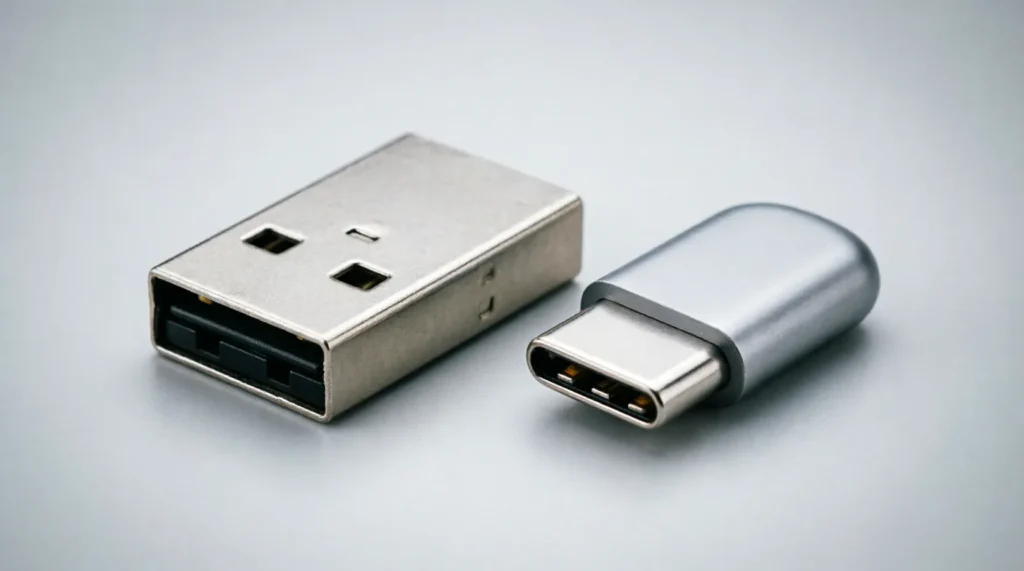
Quick answer: USB is the universal standard for connecting devices and transferring data, while USB-C is a specific type of reversible connector that represents the newest physical design within the USB family. Think of USB as the overall technology and USB-C as the modern plug shape that’s replacing older USB connectors.
People constantly confuse USB and USB-C because both terms appear on cables, ports, and device specifications. The confusion stems from the fact that USB-C is actually part of the USB family, not a separate technology entirely. Understanding this distinction helps you make smarter purchasing decisions and avoid compatibility headaches.
| Term | Meaning / When to use | Example sentence |
|---|---|---|
| USB | The universal serial bus standard for data transfer and power delivery; use when referring to the overall technology or older connector types (USB-A, USB-B) | “My laptop has three USB ports for connecting my mouse, keyboard, and external hard drive.” |
| USB-C | The newest reversible USB connector type that works with USB 3.1, 3.2, and USB4 standards; use when referring specifically to the oval-shaped, reversible port | “I need a USB-C cable to charge my new smartphone and transfer photos at high speed.” |
What is USB?
USB stands for Universal Serial Bus, and it’s been the backbone of device connectivity since the mid-1990s. When I review tech specifications for clients, I see USB mentioned everywhere—from printers and cameras to gaming controllers and storage devices.
USB defines three critical components: the communication protocols that govern data transfer, the electrical specifications for power delivery, and the physical connectors that plug into your devices. The standard has evolved through multiple versions, starting with USB 1.0 in 1996 and progressing through USB 2.0, USB 3.0, USB 3.1, USB 3.2, and now USB4.
The traditional USB connector most people recognize is USB Type-A, the rectangular plug that only inserts one way. You’ve probably fumbled with it at 2 AM, flipping it over twice before it finally connects. That frustrating experience led to the development of better connector designs.
USB technology handles everything from charging your phone to transferring 4K video files. The standard ensures that devices from different manufacturers can communicate reliably, which is why you can plug a Logitech mouse into a Dell computer without installing special drivers.
What is USB-C?
USB-C (also written as USB Type-C) represents a revolutionary shift in how we connect devices. Unlike its predecessors, USB-C features a symmetrical, oval-shaped connector that’s fully reversible—you can plug it in either way, and it just works.
I remember the first time I used a USB-C laptop. The convenience of never worrying about orientation seemed small, but after years of struggling with traditional USB plugs, it felt like a genuine breakthrough. That’s the kind of practical improvement that changes daily habits.
USB-C isn’t just about convenience, though. The connector supports dramatically higher power delivery (up to 240 watts with the latest specification), faster data transfer speeds (up to 80 Gbps with USB4), and video output capabilities that can drive multiple 4K displays. A single USB-C port can replace multiple legacy ports, which is why modern laptops increasingly feature only USB-C connections.
The connector itself is compact—about 8.4mm × 2.6mm—making it ideal for slim devices like ultrabooks and smartphones. According to the concept of difference in technical specifications, USB-C represents a fundamental departure from previous USB connector designs in both form and capability.
Key Differences Between USB and USB-C
The distinction between USB as a standard and USB-C as a connector type becomes clearer when you examine specific characteristics. Here’s what actually separates them:
Physical Design:
- Traditional USB (Type-A and Type-B) connectors are rectangular and directional
- USB-C connectors are oval and reversible
- USB-C is significantly smaller, measuring roughly one-third the size of USB Type-A
Performance Capabilities:
- USB 2.0 (common in Type-A ports) maxes out at 480 Mbps
- USB-C can support USB 3.2 Gen 2×2 at 20 Gbps or USB4 at 40-80 Gbps
- USB-C supports Power Delivery up to 240W, while traditional USB typically delivers 2.5W to 12W
Versatility:
- Traditional USB ports typically handle one function (data or charging)
- USB-C supports data transfer, video output (DisplayPort/HDMI Alt Mode), and high-wattage charging through a single cable
- USB-C enables daisy-chaining multiple devices through one port
Adoption Timeline:
- USB Type-A dominated from 1996 through the 2010s
- USB-C launched in 2014 and is now the mandatory port for many device categories
- The European Union now requires USB-C for most portable devices by 2024
When to Use USB (Traditional Type-A/B)
You’ll still encounter traditional USB ports in many situations, and knowing when they’re appropriate saves you from unnecessary adapter purchases.
Use traditional USB when:
- Connecting legacy peripherals that only have USB Type-A cables, such as older printers, scanners, or external hard drives manufactured before 2018
- Working with desktop computers that primarily feature USB 3.0 Type-A ports on the front and back panels
- Using devices that don’t benefit from USB-C’s advanced features, like basic keyboards, mice, or USB flash drives for simple file transfers
- Plugging into car USB ports, which still predominantly use Type-A connectors for phone charging and media playback
Real-world example: Last month, I helped a client set up a home office. Their new laptop had only USB-C ports, but their existing printer, webcam, and wireless mouse receiver all used traditional USB Type-A connectors. Rather than replacing all their peripherals, we purchased a single USB-C hub with multiple Type-A ports—a practical solution that respected their budget.
When to Use USB-C
USB-C shines in scenarios where speed, convenience, and versatility matter. Here’s when you should prioritize USB-C connections:
Use USB-C when:
- Charging modern smartphones, tablets, or laptops that support fast charging protocols like Power Delivery
- Transferring large files like 4K video footage, where USB-C’s superior speed dramatically reduces wait times
- Connecting external monitors, especially if you want to drive high-resolution displays or multiple screens from one cable
- Future-proofing your setup, as USB-C is becoming the universal standard across all device categories
- Traveling light, since one USB-C cable can charge your phone, laptop, and tablet while also handling data transfer
Real-world example: A freelance photographer I work with switched entirely to USB-C equipment last year. She uses one cable to charge her laptop, transfer RAW photo files from her camera at blazing speeds, and connect to her client’s monitor for presentations. Before USB-C, she carried four different cables for these tasks.
Real-world example: My nephew’s college dorm setup includes a USB-C docking station. With a single cable connecting to his laptop, he gets power, ethernet, dual monitor support, and connections for his keyboard and mouse. When he packs up for winter break, he just unplugs one cable instead of five.
How to Remember the Difference
Here’s the mental model that helps my editing clients remember this distinction: USB is the language, USB-C is the mouth that speaks it.
Think of USB as the entire communication system—the rules, the vocabulary, the protocols. USB-C is simply the newest, most efficient way to physically connect and use that system. It’s like comparing “telephone” (the technology) to “smartphone” (a specific, advanced version of that technology).
Another trick: USB-C has a “C” for “current” and “convenient.” It represents the current state of USB technology and offers convenient reversible plugging. When you see that distinctive oval shape, you’re looking at USB-C.
Common Mistakes and Exceptions
Even tech-savvy people make these errors constantly. Let me address the most frequent misconceptions I encounter:
Mistake #1: Assuming all USB-C cables are identical Not all USB-C cables support the same speeds or power levels. A cheap USB-C cable might only support USB 2.0 speeds (480 Mbps) despite having the modern connector. Always check the specifications—look for cables labeled “USB 3.2,” “Thunderbolt 3/4,” or “100W Power Delivery” if you need those features.
Mistake #2: Believing USB-C automatically means faster speeds The connector type doesn’t determine speed; the USB version does. You can have USB 2.0 speeds through a USB-C connector, or USB 3.2 speeds through traditional USB Type-A. The connector and the protocol are separate specifications.
Mistake #3: Thinking USB-C and Thunderbolt are the same Thunderbolt 3 and 4 use the USB-C connector, but they’re distinct technologies with different capabilities. All Thunderbolt 3/4 ports are USB-C, but not all USB-C ports support Thunderbolt. Look for the lightning bolt symbol to identify Thunderbolt capability.
Exception: Apple’s Lightning connector Apple devices used Lightning connectors (not USB-C) from 2012 until recently. The iPhone 15 lineup finally switched to USB-C in 2023, but older iPhones, AirPods cases, and some accessories still use Lightning. Don’t confuse Lightning with USB-C—they’re incompatible.
Regional variation: Some countries and institutions still standardize on USB Type-A for security reasons or equipment longevity. Government offices and schools often lag behind consumer adoption, so you’ll encounter traditional USB ports longer in these environments.
Frequently Asked Questions
Can I use a USB-C device with a regular USB port? Yes, with an adapter or cable that has USB-C on one end and USB Type-A on the other. However, you’ll be limited to the slower speeds and lower power delivery of the traditional USB port.
Is USB-C replacing all other USB connectors? Eventually, yes. The industry is moving toward USB-C as the universal standard, with the EU mandating it for most devices and manufacturers like Apple transitioning their entire lineup. Traditional USB Type-A will persist for years but will gradually disappear from new devices.
Why is my USB-C cable charging slowly? Your cable might only support USB 2.0 power delivery, or your charger might not support Power Delivery protocols. Check that both your cable and charger are rated for fast charging (look for “PD” or wattage ratings of 18W or higher).
Does USB-C work with older USB devices? Yes, USB maintains backward compatibility. You can connect older USB devices to USB-C ports using appropriate adapters, and USB-C devices can work with traditional USB ports through adapter cables. The connection will operate at the slower device’s speed.

Anthony Perez, a PhD in Applied Linguistics from the University of Toronto, has dedicated over 12 years to studying the cognitive aspects of language acquisition, with a special focus on English spelling conventions. His journey into the world of spelling and word comparisons was sparked by his research on how non-native speakers adapt to English orthography. At SpellRightDaily, Anthony shares his insights through content that explores the science behind spelling acquisition and offers strategies for overcoming common traps in English spelling. His articles are particularly aimed at learners who are new to English, although his engaging explanations also attract native speakers interested in refining their spelling skills. Anthony’s research-driven approach provides an evidence-based perspective that enriches the site’s resources, offering readers not just the ‘how’ but the ‘why’ behind effective spelling strategies. His work at SpellRightDaily combines academic rigor with practical application, making complex concepts accessible to a broad audience.